Get started
Swarms
Run the same work across a whole list of records, or across records Grep finds for you.
Step 1
What a swarm is
One job, done for every record on a list.
A swarm takes one piece of work and does it for many records at once: every company on a list, every person in a spreadsheet. You can bring the list, or ask Grep to find the records for you.
SWARMS in the left sidebar lists yours. Each card shows its status, job progress or plan steps, and a link to what to do next, such as Review plan or View results. NEW SWARM opens the Manual and Chat choices.
Try it in Grep: Show me where Swarms live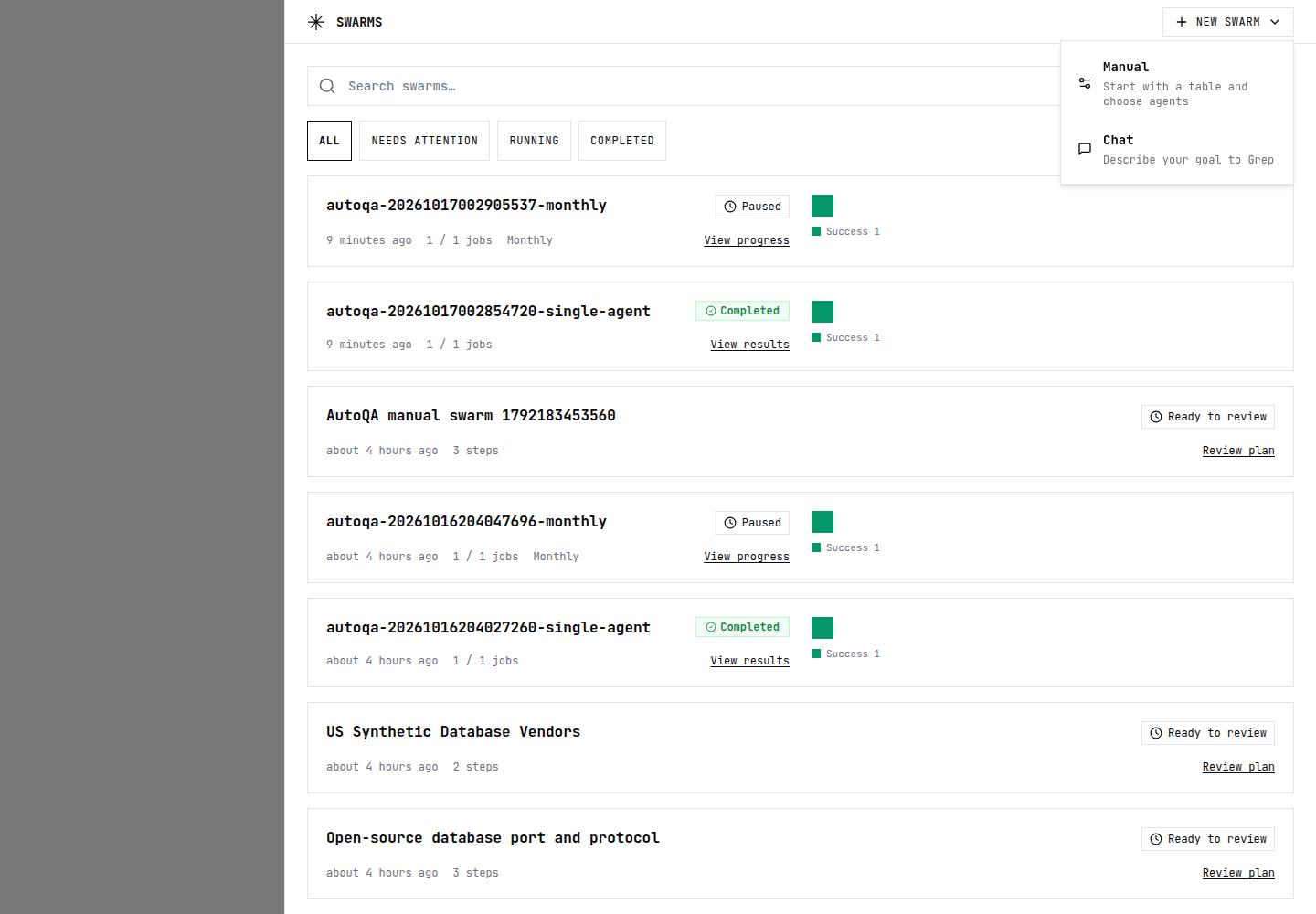
On the Swarms page, the buttons under the search box, ALL, NEEDS ATTENTION, RUNNING and COMPLETED, narrow the list. NEEDS ATTENTION holds work that stopped and is waiting on you.
Checked against the product on October 17, 2026
Step 2
Start one from a chat
Tell Grep what to repeat, then choose how to run it.
Start in any chat, or choose NEW SWARM, then Chat. When your request needs the same investigation for each record, Grep recommends a swarm and explains the benefits: parallel work, progress for each record, and keeping completed results if some work needs a retry. It asks whether you want a swarm before preparing one, unless you already explicitly requested it. It then asks for any missing details about the goal, inputs and deliverables.
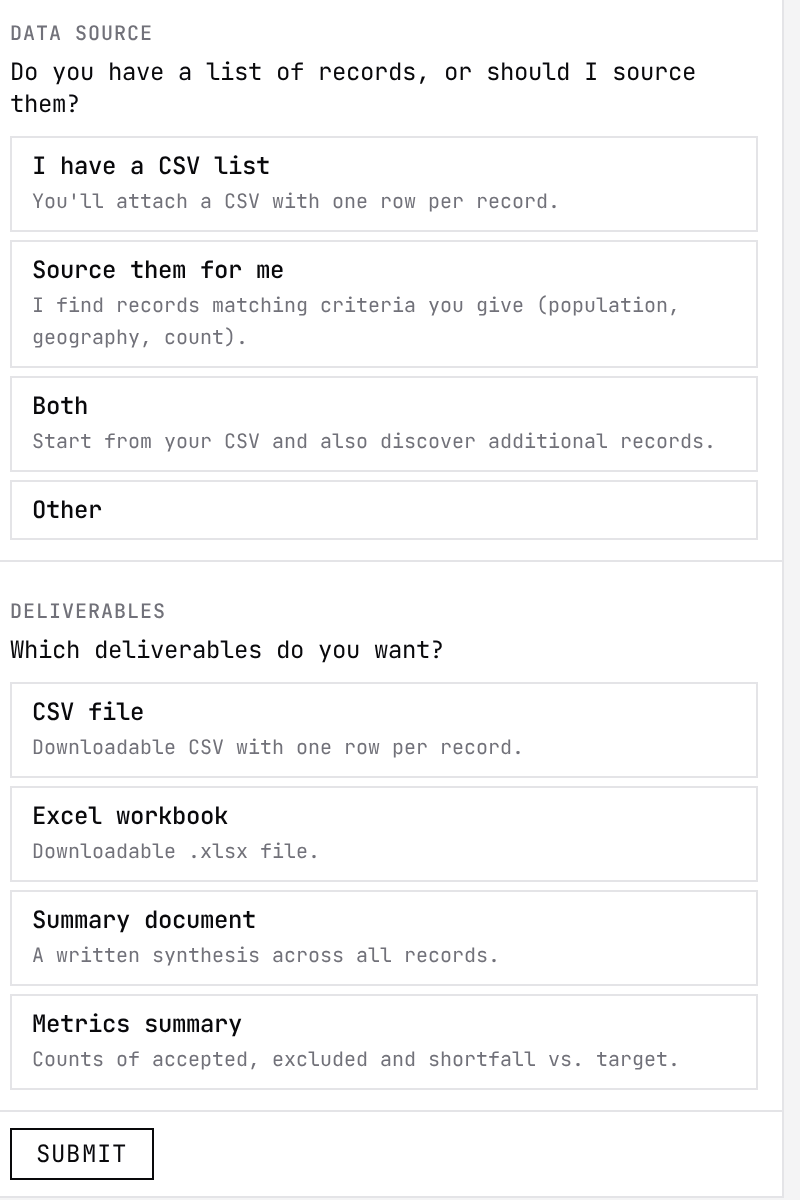
| Data source | What happens next |
|---|---|
| I have a CSV list | Grep asks for the file, with CHOOSE FILE, and uses one row per record. |
| Source them for me | Grep finds records matching criteria you give it, such as population, geography and count. |
| Both | Grep starts from your CSV and also looks for more records. |
- Give the list a header row, and one row per record.
- Say what you want back for each record. If you do not, the plan asks for a general summary.
Checked against the product on October 21, 2026
Step 3
Read the plan Grep drafts
Nothing runs until you launch it.
From your answers Grep writes a swarm plan into the chat and saves it as a draft. It lists the goal, the records it found in your file, each stage of the work and what happens if some records fail. It also says plainly what you left undefined.
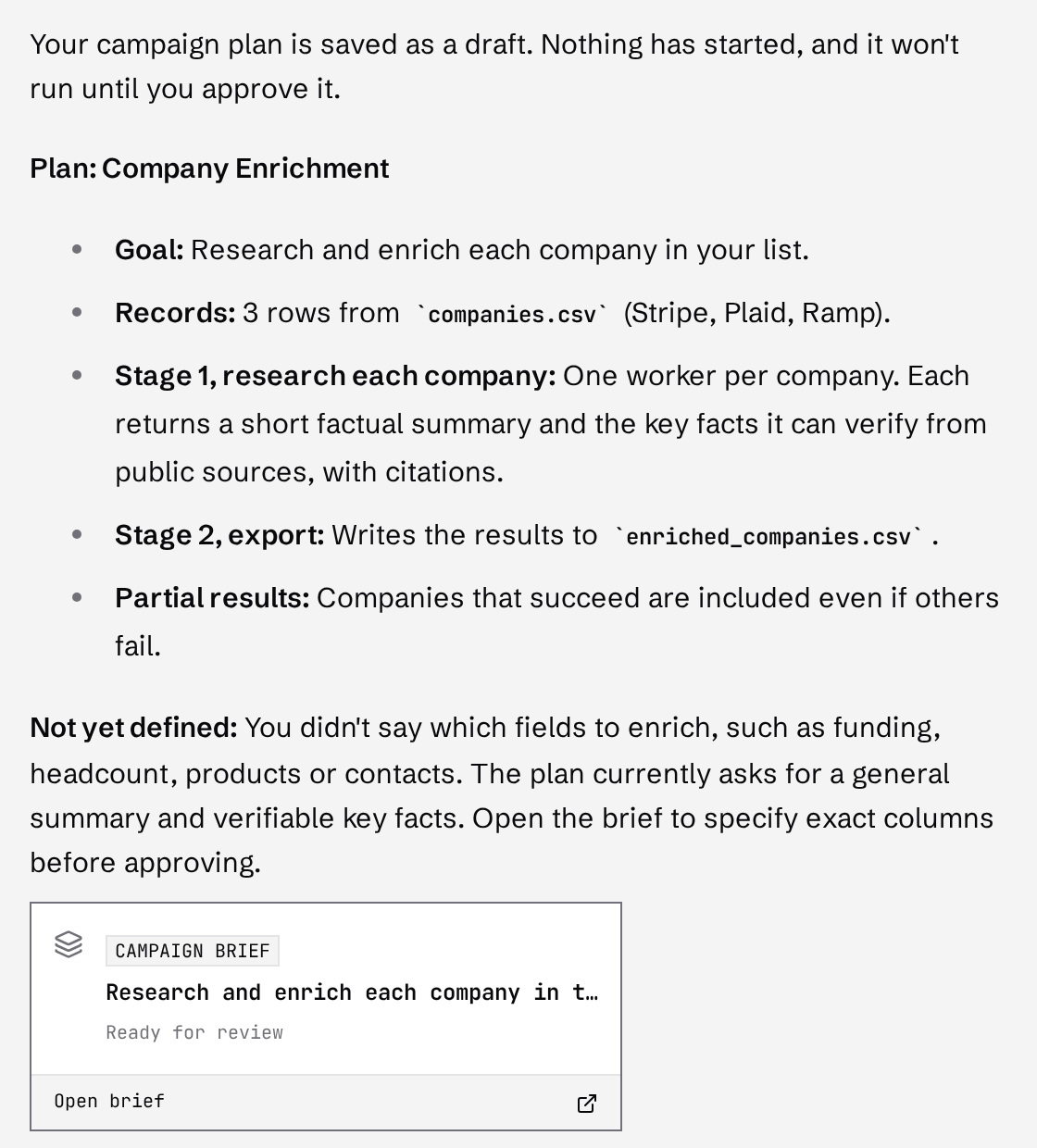
The plan ends with a SWARM BRIEF card that shows whether it is ready for review. Open brief opens the brief beside the chat, where you can change anything before it runs. The swarm also appears on the Swarms page with Review plan.
Checked against the product on October 16, 2026
Step 4
Step 1 — Brief
The questions the whole swarm is built on.
The brief has three steps along the top: 1 BRIEF, 2 WORKFLOW and 3 REVIEW. BACK and NEXT move between them, and a line at the top says whether your changes are saved.
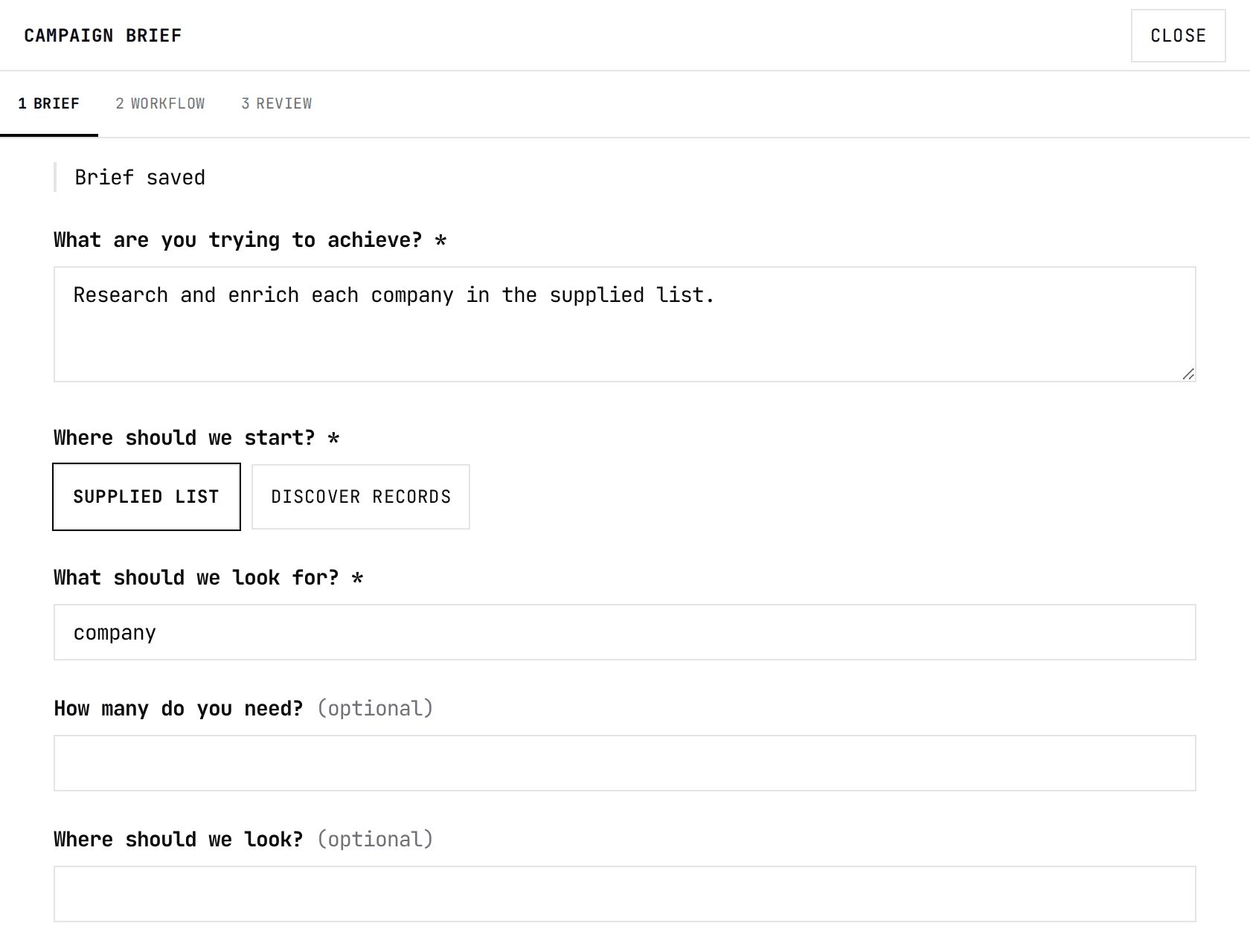
Questions marked * are required; the others say (optional). WHERE SHOULD WE START? is SUPPLIED LIST or DISCOVER RECORDS. HOW MANY DO YOU NEED? matters most for discovery. WHAT SHOULD HAPPEN FOR EACH RESULT? is the work done on every record, and WHAT SHOULD THE FINISHED RESULT INCLUDE? is what you get at the end.
ADVANCED OPTIONS (OPTIONAL) adds how recent sources should be, what evidence each result needs, what to do when information is missing, a deadline, and whether any action beyond research should happen: NONE, DRAFT ONLY or PROPOSE FOR APPROVAL.
Checked against the product on October 16, 2026
Step 5
Step 2 — Workflow
Choose the agents, their assignments and how their results connect.
WORKFLOW shows your team on a canvas. Each agent has an assignment, and arrows show which results the next step receives. A plan can run agents in parallel, combine their findings and pass them to another agent before exporting the result.
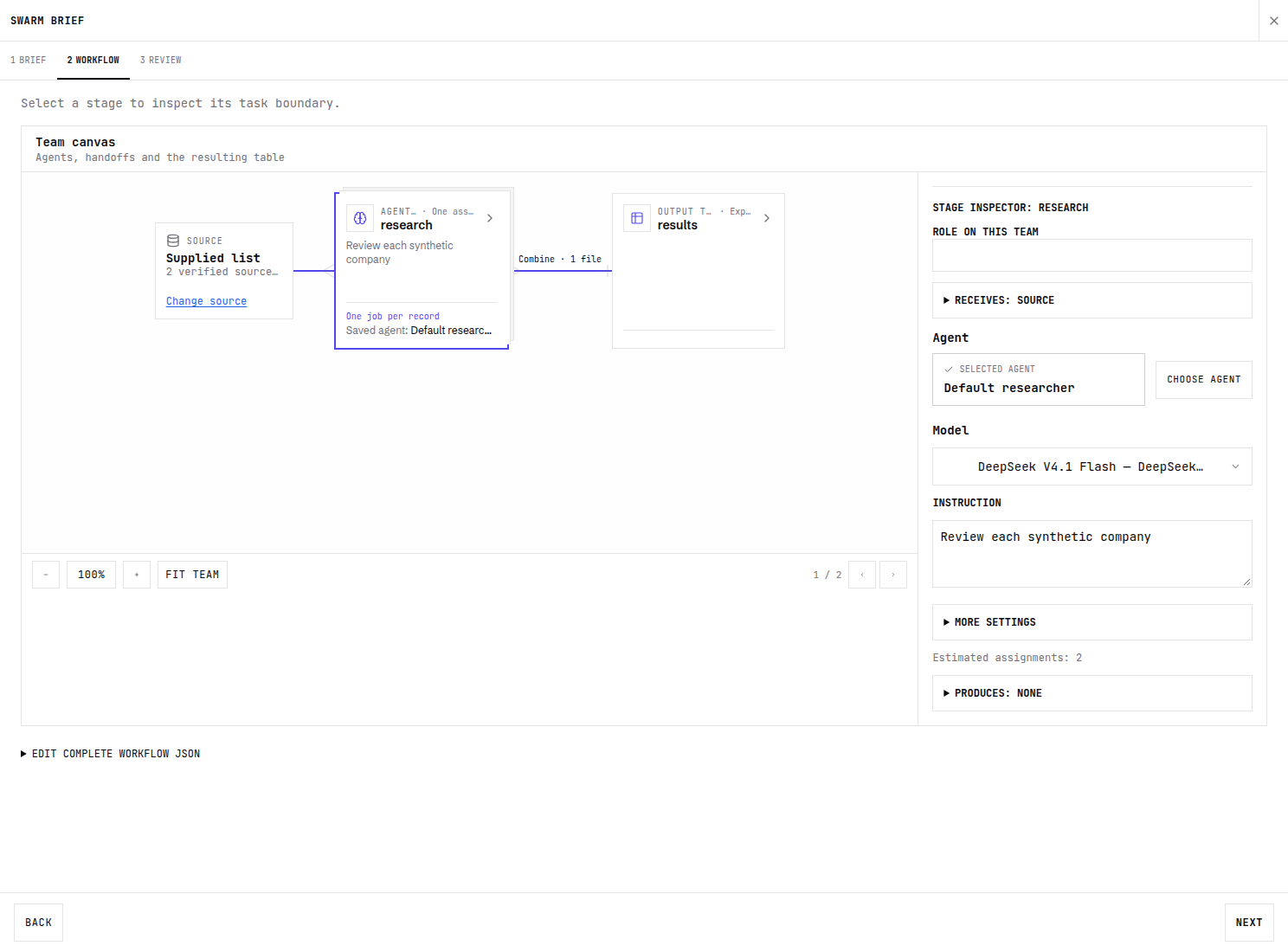
Select an agent step to edit its ROLE ON THIS TEAM and INSTRUCTION. The role names this assignment; the Agent is the reusable agent that performs it. CHOOSE AGENT lets you pick an existing agent, and Model selects the model for this step.
RECEIVES shows where the step gets its records or findings. PRODUCES shows what it returns. Open those sections to inspect or edit the connections, input fields and output format. MORE SETTINGS contains controls such as concurrent assignments and assignment unit.
FIT TEAM brings the whole workflow into view. In a wide panel, the canvas sits on the left and the selected step’s editor sits on the right. In a narrow panel, steps run down the canvas and the editor appears below it. Scroll down to edit the assignment.
Checked against the product on October 22, 2026
Step 6
Step 3 — Review
Check the output, team and launch readiness.
REVIEW shows your intended outcome, the declared deliverables and their fields, and the agents assigned to the work. The preview shows structure, not generated results. EDIT WORKFLOW returns to the plan. DETAILS keeps source provenance and lower-level settings available.
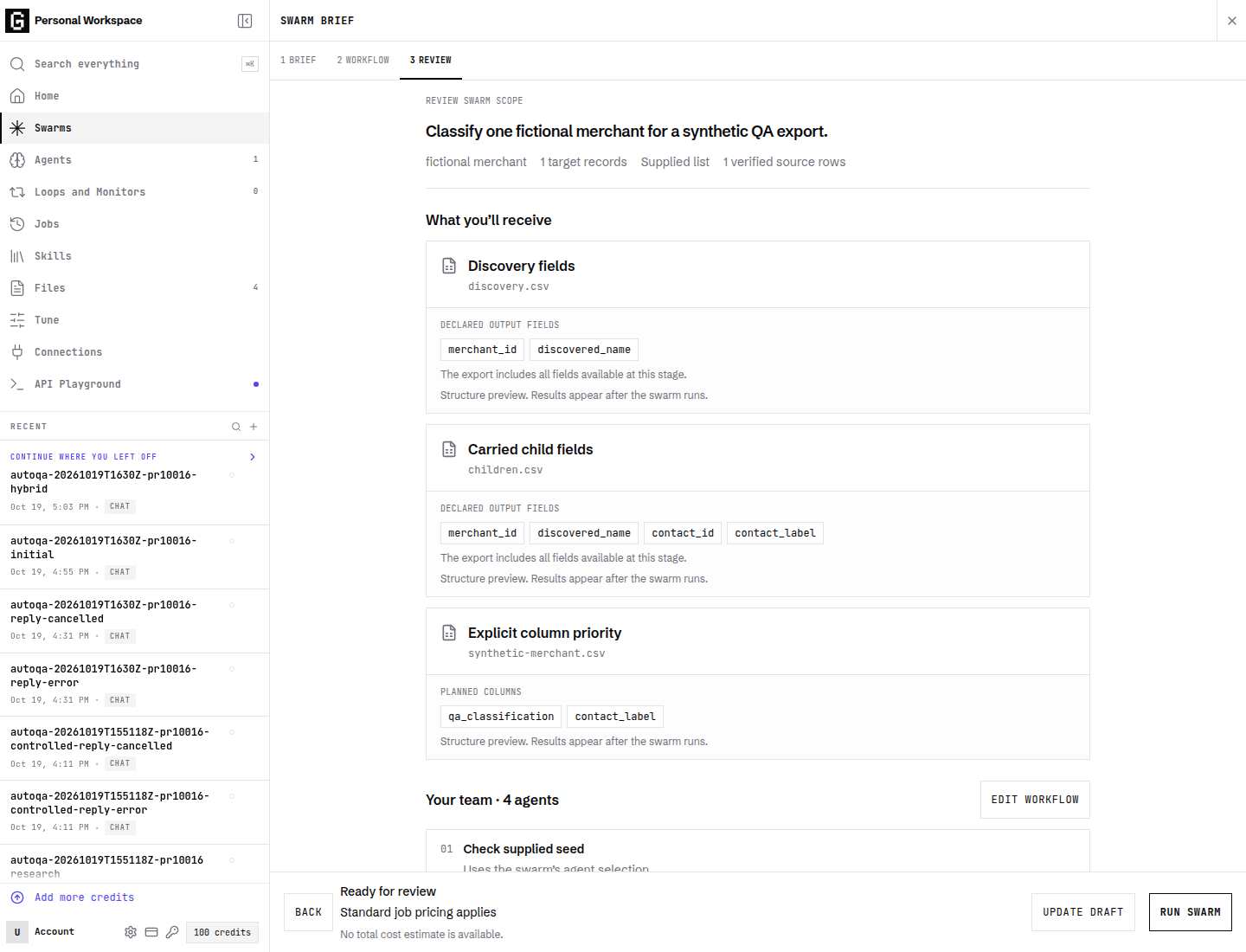
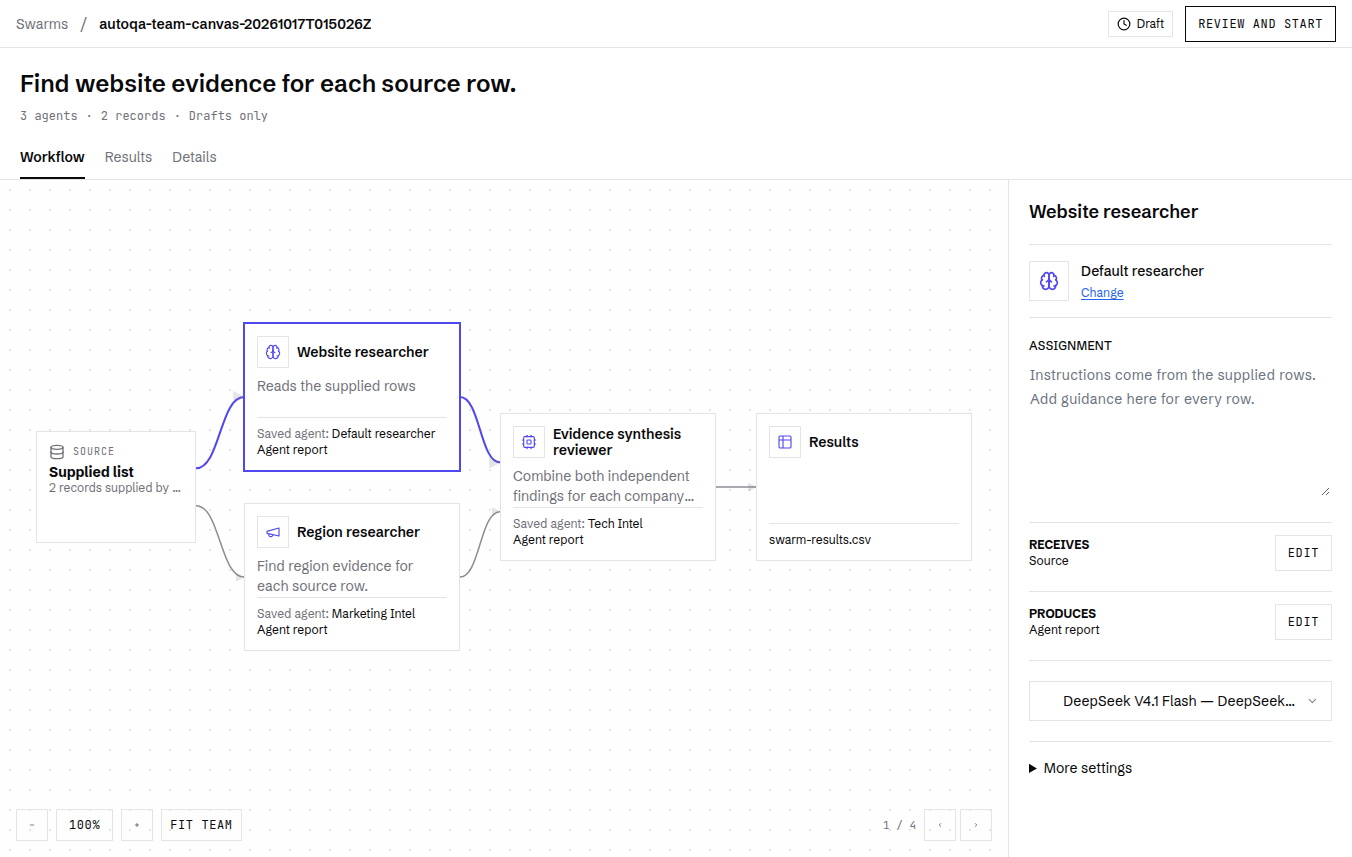
UPDATE DRAFT saves your edits without starting anything. RUN SWARM starts the work after the launch checks. Open the linked draft from Swarms to see its team on Workflow. EDIT BRIEF and RUN SWARM remain available in the header.
Select an agent in Workflow to inspect its saved agent, assignment, inputs and output. Use Edit brief to change a linked draft. Results holds the deliverables, marked Not produced yet before launch. Details holds the scope and workforce information.
Checked against the product on October 17, 2026
Step 7
Launch it
Grep checks the price again before anything starts.
RUN SWARM reads the signed launch terms again before starting work. Ordinary runs use standard job pricing without an automatic spending cap. Explicitly configured limits remain in force. If the reviewed terms change, nothing starts until you review them and approve again.
On the swarm’s launch quote, Spending limit in credits (optional) lets you choose a cap. Leave it blank to use standard job pricing without adding a spending limit. Explicitly configured limits still apply. Your chosen limit is checked before the work starts.
When there is no total cost estimate, Review says so instead of showing an admission allowance as the price. If your balance cannot fund the first work, Top up to launch asks you to add credits. A real estimate or saved ceiling above your balance may also show a balance warning.
How a reservation is settledStep 8
Watch it run
Every record is its own run, and you can open any of them.
Once launched, the swarm page shows the Workflow with each stage's status and how many of its jobs are ready. Follow active keeps the stage that is working in view and leaves an open report available as the active stage changes. Selecting a stage manually closes the report.
Agent runs opens as a grid. Grid, Table and Browsers stay together at the left of the workspace, and your choice is remembered in this browser. Browsers appears when the swarm has browser sessions. Use it to watch live sessions or review browser history, with filters for stage and status. Switching views keeps your selected stage. Click a run card to open its report beside the workflow, or use Table to search records, inspect fields and export the filtered rows. Each row shows its own agent and status.
A record that fails does not stop the others. Issues to resolve lists what went wrong. Use Retry job for an individual record when available, or Retry failed work to retry the swarm’s failed work while keeping completed results.
To stop a swarm, open the three-dot Swarm actions menu, choose Cancel swarm and confirm. Completed results remain available. A cancelled swarm offers Resume swarm; confirm to restart unfinished work using credits. If jobs are still stopping, wait before trying again. The page explains if another condition prevents resuming.
Step 9
Get the results
Look at them in the page, take the file away.
Open a record from Grid or Table to read its result beside the workflow. Table combines the batches for the selected stage and lets you search records, inspect their output fields and export the filtered rows. Where a stage lists its results, each record shows a Work status: Ready, Pending, Failed, Cancelled or Excluded, and How results were checked shows accepted, pending, failed and cancelled counts separately.
Ready files appear in the highlighted Deliverables section above the workflow. Choose Open preview to view a file beside the swarm, or Download to save the original. Until the export stage produces a file, its entry says Not produced yet.
When the swarm finishes, Grep sends one email to the address on your account, "Your swarm is ready", with View results linking back to the swarm page.
Checked against the product on October 23, 2026